Uploading PSP Data
Before NjiaPay can reconcile your transactions, it needs the settlement files from your payment service providers (PSPs). You upload these via the Payment Service Providers data tab on the Reconciliation page in the Merchant Portal.
The Upload Interface
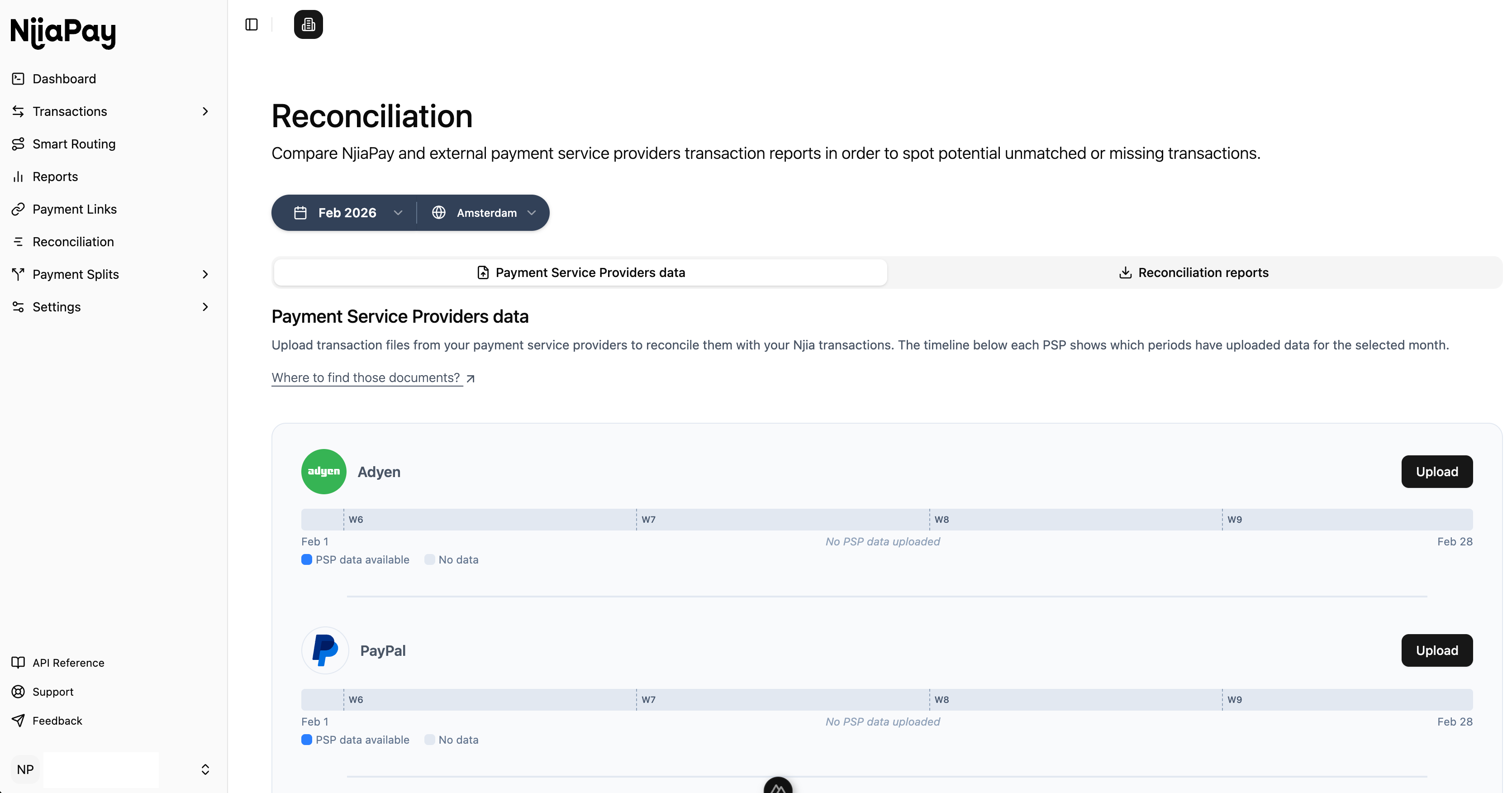
The page lists each PSP you use, with an Upload button and a coverage timeline for the selected month.
Getting the right file from your PSP
Each PSP has a different dashboard, and finding the correct report to export is not always straightforward. PSPs often have multiple export options, and picking the wrong one will result in a file that NjiaPay cannot process. See the PSP Export Guides for step-by-step instructions with screenshots for each PSP.
How to Upload
- Log in to the Merchant Portal and navigate to Reconciliation
- Select the month you want to reconcile using the month picker
- Click the Payment Service Providers data tab
- For each PSP, click the Upload button and select the settlement file (CSV format)
- Wait up to 10 minutes for the data to be processed. The timeline bar will fill in once processing is complete
The Coverage Timeline
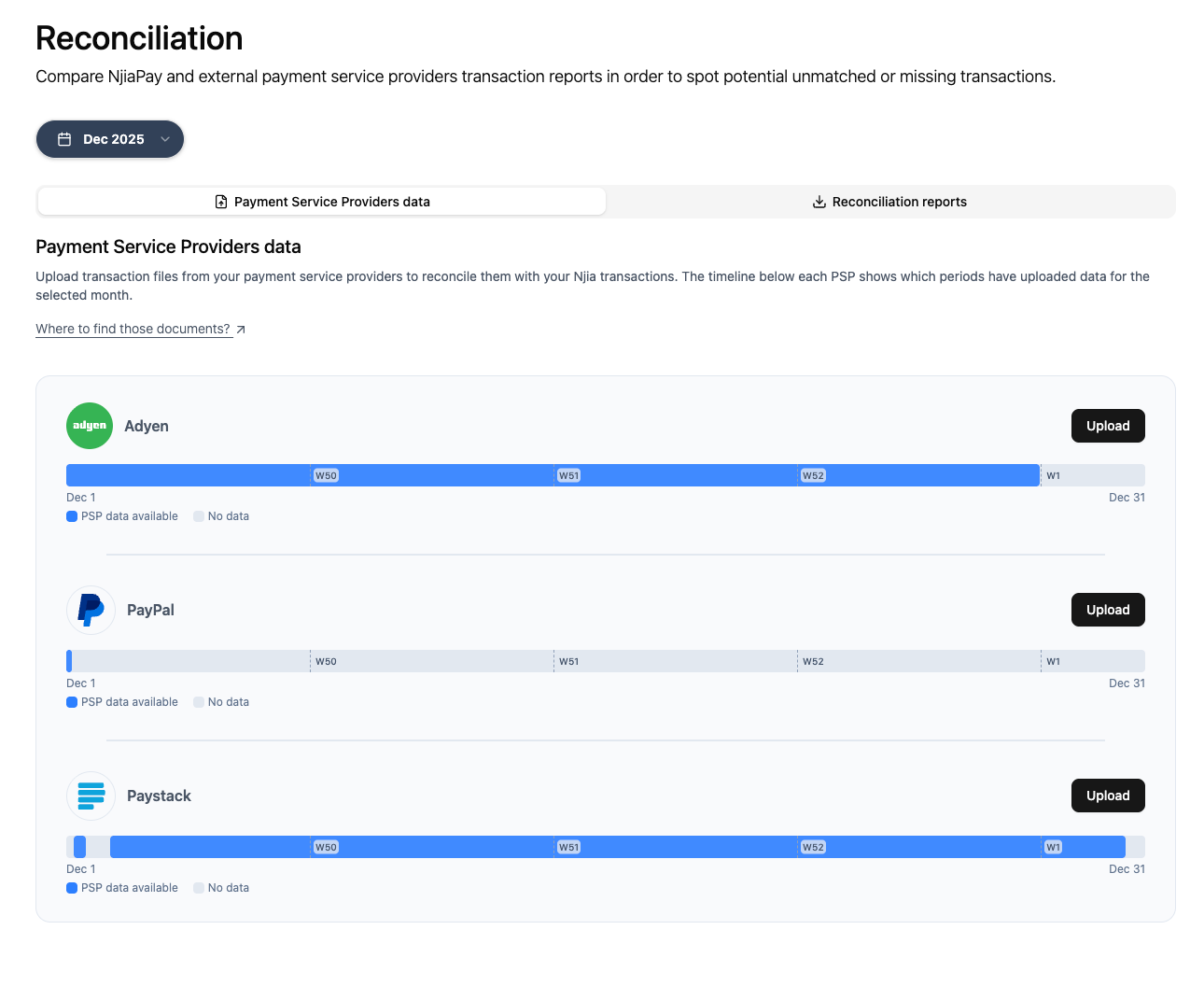
Each PSP has a timeline bar that shows exactly which date ranges have settlement data available for the selected month.
Reading the Timeline
- Blue segments: PSP data has been uploaded and processed for this period. Transactions in these date ranges can be matched against the PSP settlement.
- Grey segments: no PSP data available yet for this period. Transactions in these date ranges will appear as unmatched in your reports.
The timeline is divided by week (W50, W51, etc.) so you can quickly spot which weeks are missing data.
What "Complete Coverage" Looks Like
Your goal is to get the timeline bar fully blue for each PSP for the month you're reconciling. In the screenshot above:
- Adyen has data from Dec 1 through roughly Dec 24 (blue), but the last week is grey, meaning the final settlement batch hasn't been uploaded yet
- PayPal has almost no data uploaded (mostly grey with a tiny blue sliver at the start)
- Paystack has data covering most of the month
Any grey gaps mean there are NjiaPay transactions that cannot be matched against PSP records for those dates.
Upload Frequency
How often you need to upload depends on your PSP's settlement schedule:
| PSP | Settlement Frequency | Recommended Upload Cadence |
|---|---|---|
| Adyen | Per settlement batch (typically weekly) | After each batch closes |
| PayPal | Daily activity reports | Weekly or at month-end |
| Paystack | Per settlement cycle | After each settlement |
For the most accurate reconciliation, export and upload PSP files after the month ends, when the data is as definitive as possible. You can upload additional files later; new data is merged with existing coverage, but earlier uploads take precedence.
What Happens After Upload
Once you upload a PSP settlement file:
- NjiaPay processes the file and extracts individual transaction records (up to 10 minutes)
- The coverage timeline updates to show the new blue segments
At this point, the PSP data is stored but not yet reconciled. The reconciliation engine runs automatically once per day at 1:00 AM UTC. During that run, it matches the newly uploaded PSP records against NjiaPay transactions and updates the reports.
This means that after uploading a file, you will see the coverage timeline turn blue within 10 minutes, but the Reconciliation reports tab will only reflect the new matches after the next 1:00 AM UTC run.
Troubleshooting
Timeline didn't update after upload
- Wait the full 10 minutes; processing large files takes time
- Refresh the page
- Check that the file was in the correct CSV format for that PSP (see PSP Export Guides)
Transactions still unmatched after uploading
- The settlement file may not cover the date range of those transactions. Check the timeline for grey gaps
- The PSP reference format in the file may not match what NjiaPay recorded. Contact NjiaPay support.