Timezone Settings
All timestamps in the reconciliation portal and CSV exports follow the timezone selector next to the month picker at the top of the Reconciliation page. By default, this is set to your browser's locale timezone.
The Timezone Selector
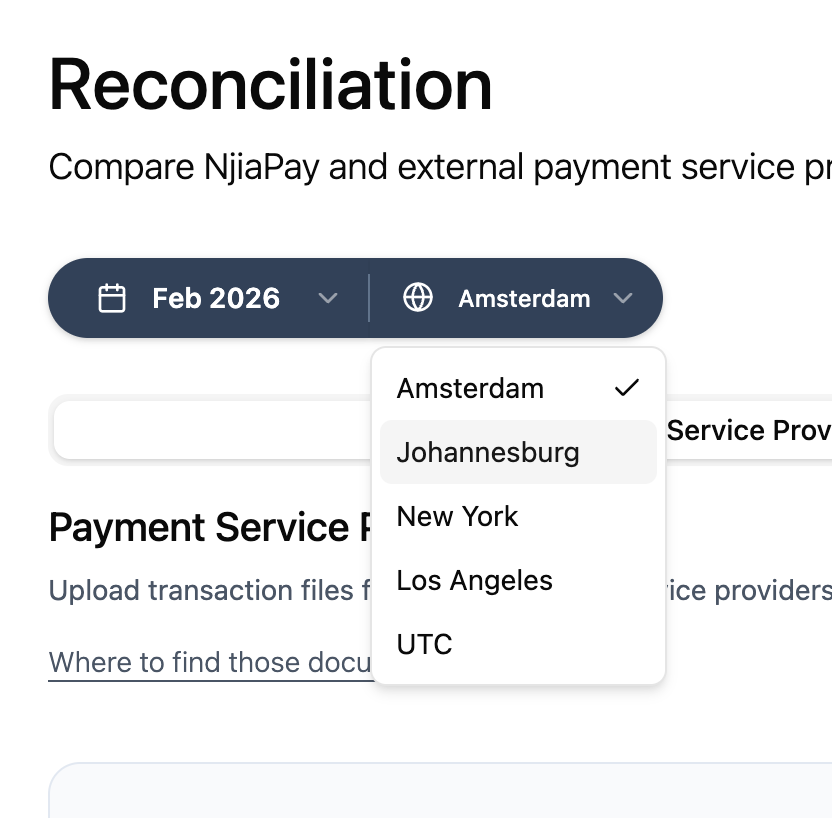
Click the timezone pill (e.g. "Amsterdam") to choose from the available options. This adjusts:
- Which transactions fall within the selected month. For example, a transaction at 23:30 UTC on Jan 31 would appear in February if you're viewing in a UTC+2 timezone
- The displayed timestamps in the portal and in CSV exports
Month Boundaries Shift with Timezone
The same transaction can land in different months depending on which timezone you select. Here is an example with a transaction processed at 2025-11-01 00:30 UTC, right after midnight:
The transaction appears in November for UTC and Amsterdam, but in October for New York and Los Angeles. This is because those cities are still on October 31 when midnight UTC passes.
| Timezone | Local Time | Appears In |
|---|---|---|
| UTC | Nov 1, 00:30 | November |
| Amsterdam (CET, UTC+1) | Nov 1, 01:30 | November |
| New York (EST, UTC-5) | Oct 31, 19:30 | October |
| Los Angeles (PST, UTC-8) | Oct 31, 16:30 | October |
DST Crossing: How March Works in Amsterdam
Daylight saving time (DST) creates a tricky situation when the clock change happens mid-month. Amsterdam switches from CET (UTC+1) to CEST (UTC+2) on the last Sunday of March.
NjiaPay locks the export to the offset at the start of the month (March 1 = CET, UTC+1). This means:
- A transaction on March 15 at 14:00 UTC is exported as 15:00 CET (UTC+1)
- A transaction on March 30 at 14:00 UTC is also exported as 15:00 CET (UTC+1), even though the wall clock in Amsterdam actually reads 16:00 CEST at that moment
This avoids two problems:
- A "missing hour" in your spreadsheet when clocks spring forward (2:00 AM jumps to 3:00 AM)
- SUMIFS or pivot tables that suddenly group the same day into two different offsets
DST Crossing: How November Works in New York
New York switches from EDT (UTC-4) to EST (UTC-5) on the first Sunday of November. The same "lock to start of month" rule applies.
November 1 is in EDT (UTC-4), so the entire November export uses UTC-4:
- A transaction on Nov 1 at 18:00 UTC is exported as 14:00 EDT (UTC-4)
- A transaction on Nov 15 at 18:00 UTC is exported as 14:00 EDT (UTC-4), even though the wall clock in New York reads 13:00 EST at that point
How the Month Boundary Works at DST Edges
The trickiest scenario is when a DST change happens on or around the 1st of a month. Here is what happens with the March/April boundary in Amsterdam:
A transaction at 23:30 UTC on March 31 falls into different months depending on the timezone:
- In UTC: it's still March 31, so it appears in the March report
- In Amsterdam (CET+1): it becomes April 1 at 00:30, so it falls out of March and into April
No transaction is ever lost. It always appears in exactly one month's report. But which month depends on your timezone selection.
Default Behaviour
If you never touch the timezone selector, it defaults to your browser's locale timezone. This means:
- A team member in Johannesburg sees timestamps in SAST (UTC+2)
- A team member in London sees timestamps in GMT/BST
- Both see the same underlying data, just grouped and displayed differently
Recommendations
- Pick one timezone for your team and stick with it for all reconciliation work. This prevents the same transaction from appearing in different monthly reports for different people.
- Use UTC if your team spans multiple continents. It's the simplest option with no DST changes.
- Use your head-office timezone if your team is in one location. Timestamps will match your local business hours, making it easier to correlate with operational events.
Paystack: Understanding the Transaction Export
All row types in Paystack's transaction CSV, what each column means, and annotated examples for every status and payment channel.
Amounts: Major & Minor Units
How amounts are represented in reconciliation reports and how the conversion works across currencies with different decimal places.