PayPal Export Guide
You need to export an All transactions activity report from PayPal. This includes all transaction types (payments, refunds, holds, fees) which NjiaPay needs for complete reconciliation. See PayPal's official documentation for full details on the Activity Download report.

Step-by-step Export
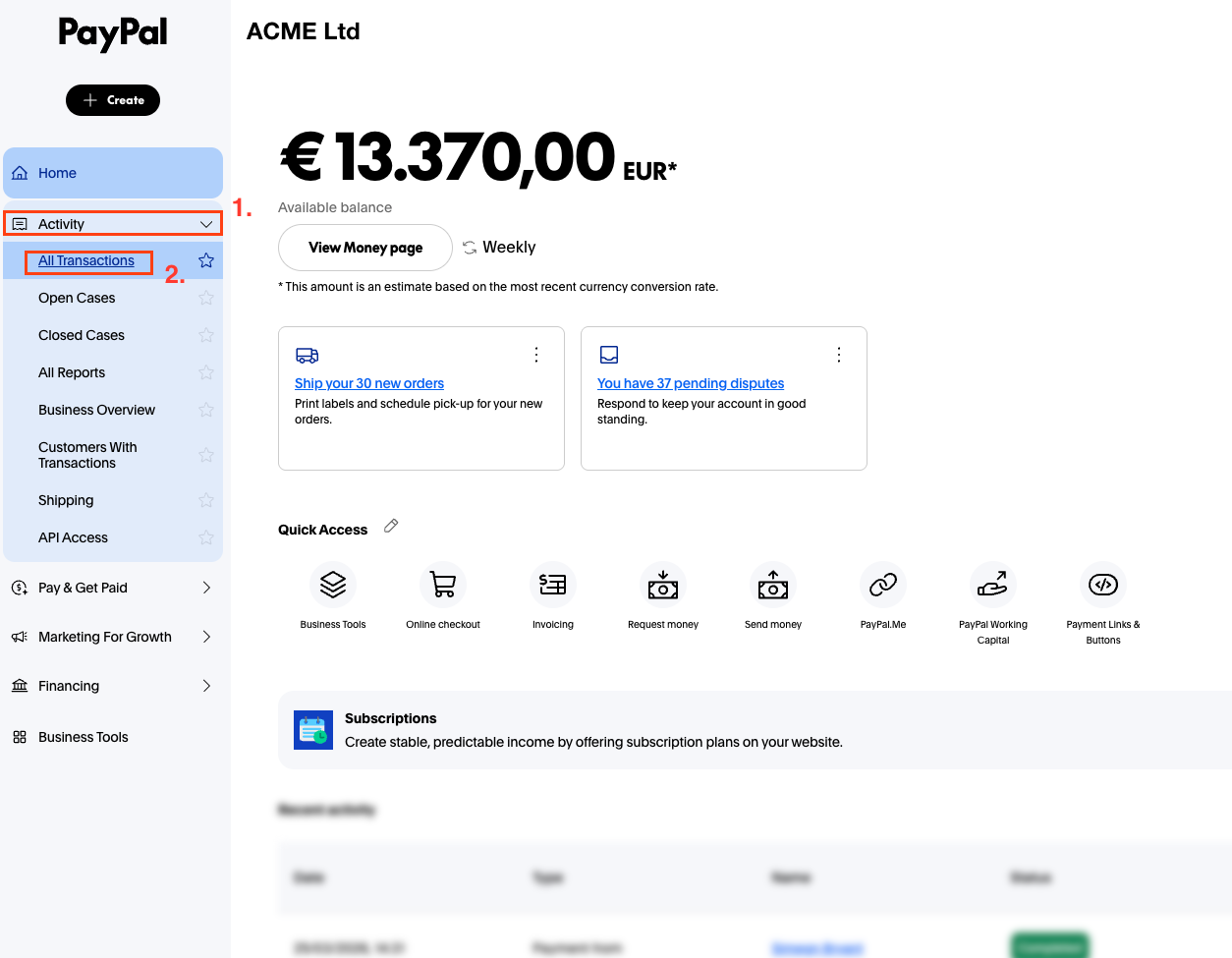
1. Open Activity > All Transactions
In the left sidebar, expand Activity and click All Transactions.
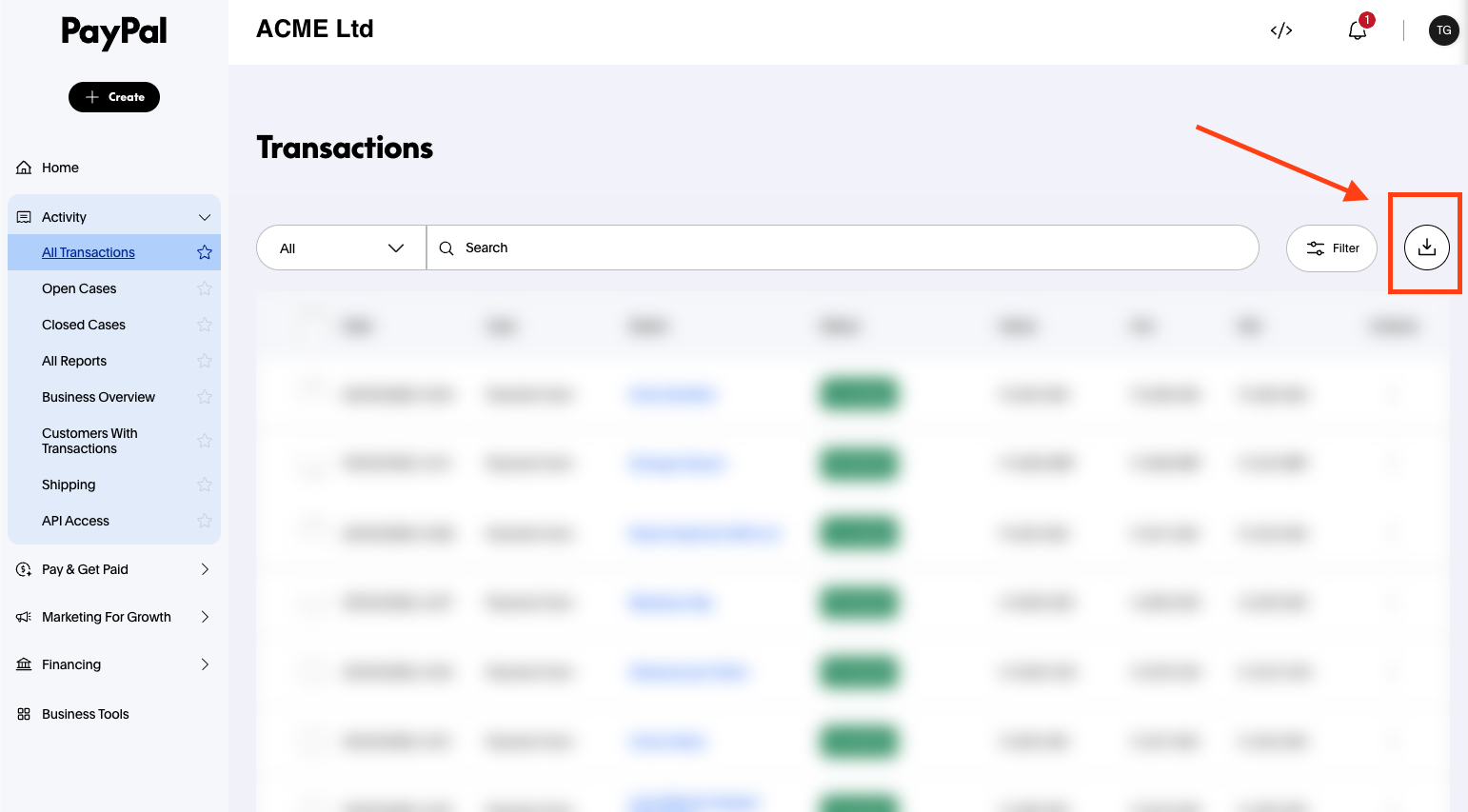
2. Click the Download button
On the Transactions page, click the download icon (⤓) in the top right of the transaction list.
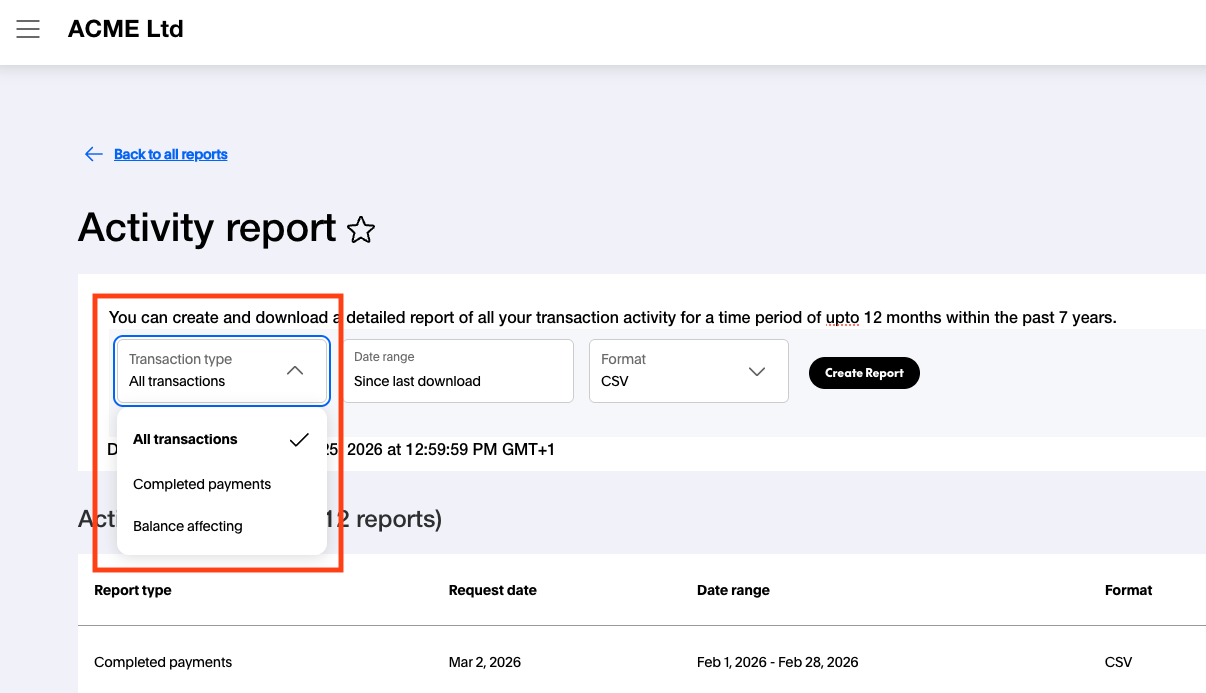
3. Select "All transactions" as the transaction type
On the Activity report page, open the Transaction type dropdown and select All transactions. Do not select "Completed payments" or "Balance affecting", as these omit data NjiaPay needs.
4. Select the date range
Open the Date range dropdown and select the period you want to cover. You can use a preset like "Past month" or enter custom From/To dates. Pick the range that matches the gaps in your NjiaPay coverage timeline.
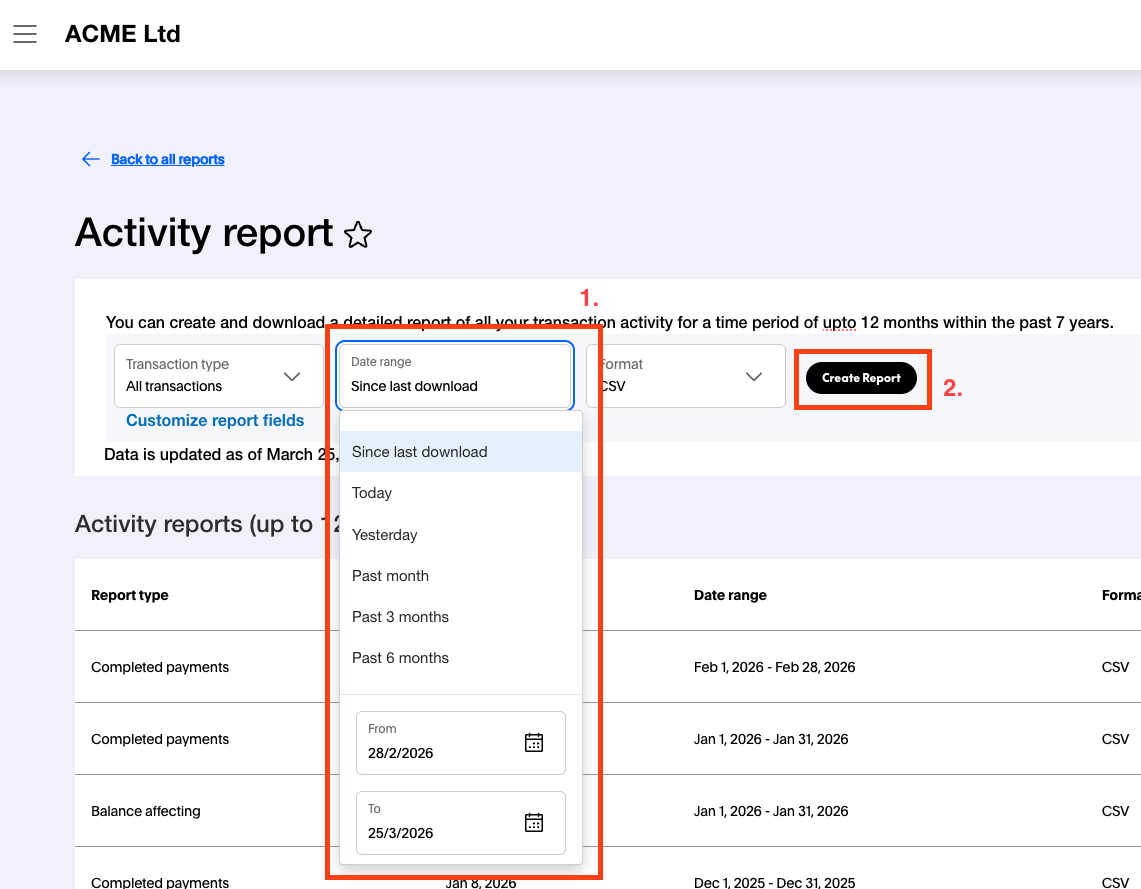
5. Create the report
Click Create Report. PayPal will start generating the CSV in the background.
6. Wait for the report to appear
The report may take a few minutes to generate. Occasionally click Refresh in the Activity reports list below until your report appears.
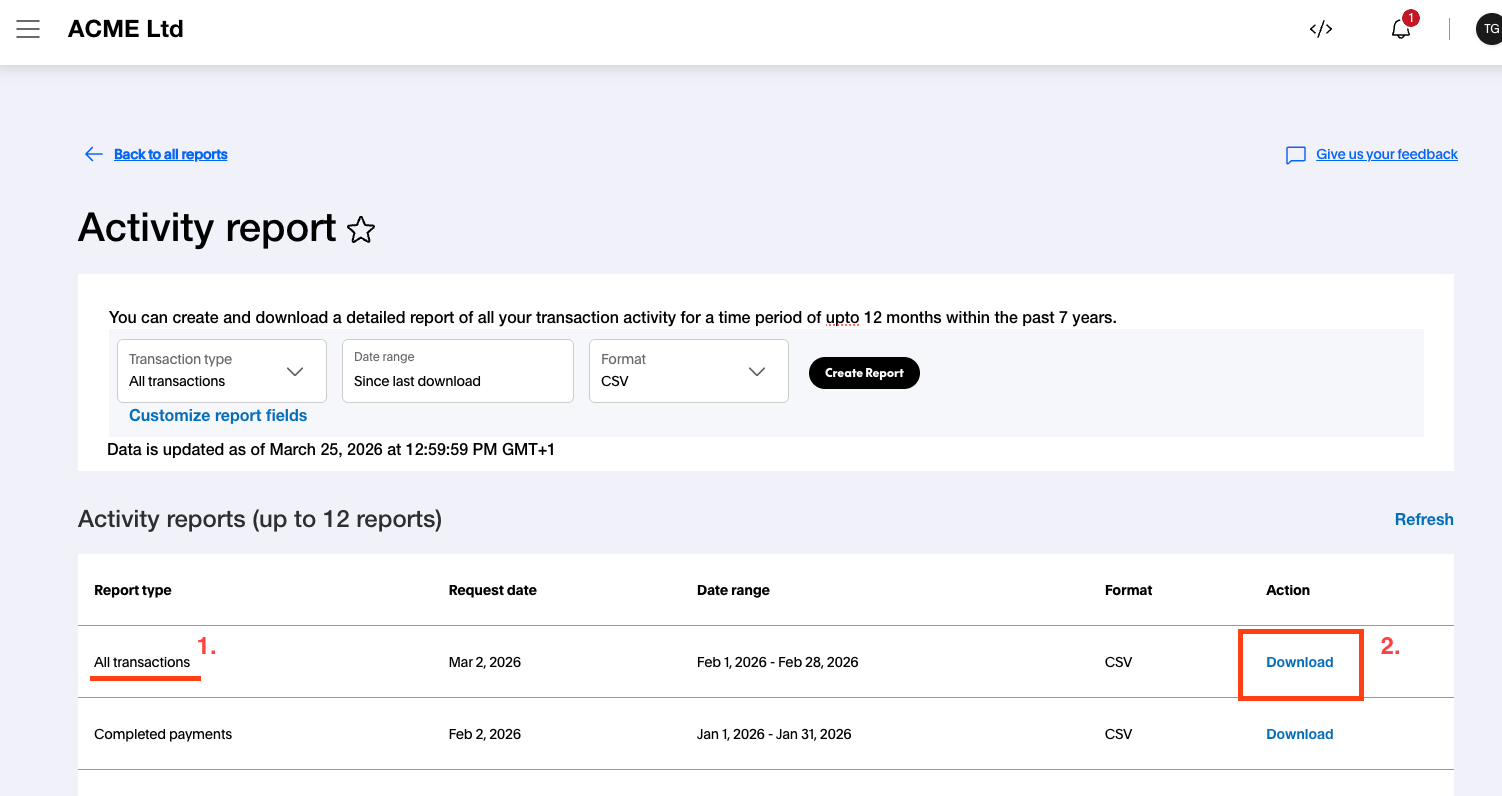
7. Download the report
Find your report in the list. Make sure the Report type column says All transactions (not "Completed payments"). Click Download.
8. Upload to NjiaPay
Upload the downloaded CSV file via the PSP upload page.
Required Columns
Your PayPal CSV must contain all of the following columns. Extra columns are allowed and will be ignored.
| Column Name | Type | Description | Example |
|---|---|---|---|
| Transaction ID | Text | PayPal's unique transaction identifier | 1EG89019681749326 |
| Date | Text | Transaction date in DD/MM/YYYY format | 01/11/2025 |
| Time | Text | Transaction time in HH:MM:SS format | 00:17:41 |
| TimeZone | Text | Timezone of the Date and Time | CET |
| Type | Text | Transaction type | Express Checkout Payment |
| Currency | Text | Currency code | USD, GBP, EUR |
| Gross | Text | Gross amount (uses comma as decimal separator) | 5,99 |
| Fee | Text | Fee amount, negative (uses comma as decimal separator) | -0,51 |
| Net | Text | Net amount (uses comma as decimal separator) | 5,48 |
| Custom Number | Text | Your internal reference (intent_id~attempt_id) | 019a3c8f-61cf~1837173 |
5,99 instead of 5.99). Do not modify the file before uploading. NjiaPay handles this format automatically.Example Rows
| Transaction ID | Date | Time | TimeZone | Type | Currency | Gross | Fee | Net | Custom Number |
|---|---|---|---|---|---|---|---|---|---|
| 1EG89019681749326 | 01/11/2025 | 00:17:41 | CET | Express Checkout Payment | AUD | 5,99 | -0,51 | 5,48 | 019a3c8f-61cf~1837173 |
| 56J774778W968405E | 01/11/2025 | 00:40:56 | CET | Express Checkout Payment | GBP | 3,99 | -0,41 | 3,58 | 019a3ca3-adc2~1837195 |
Troubleshooting
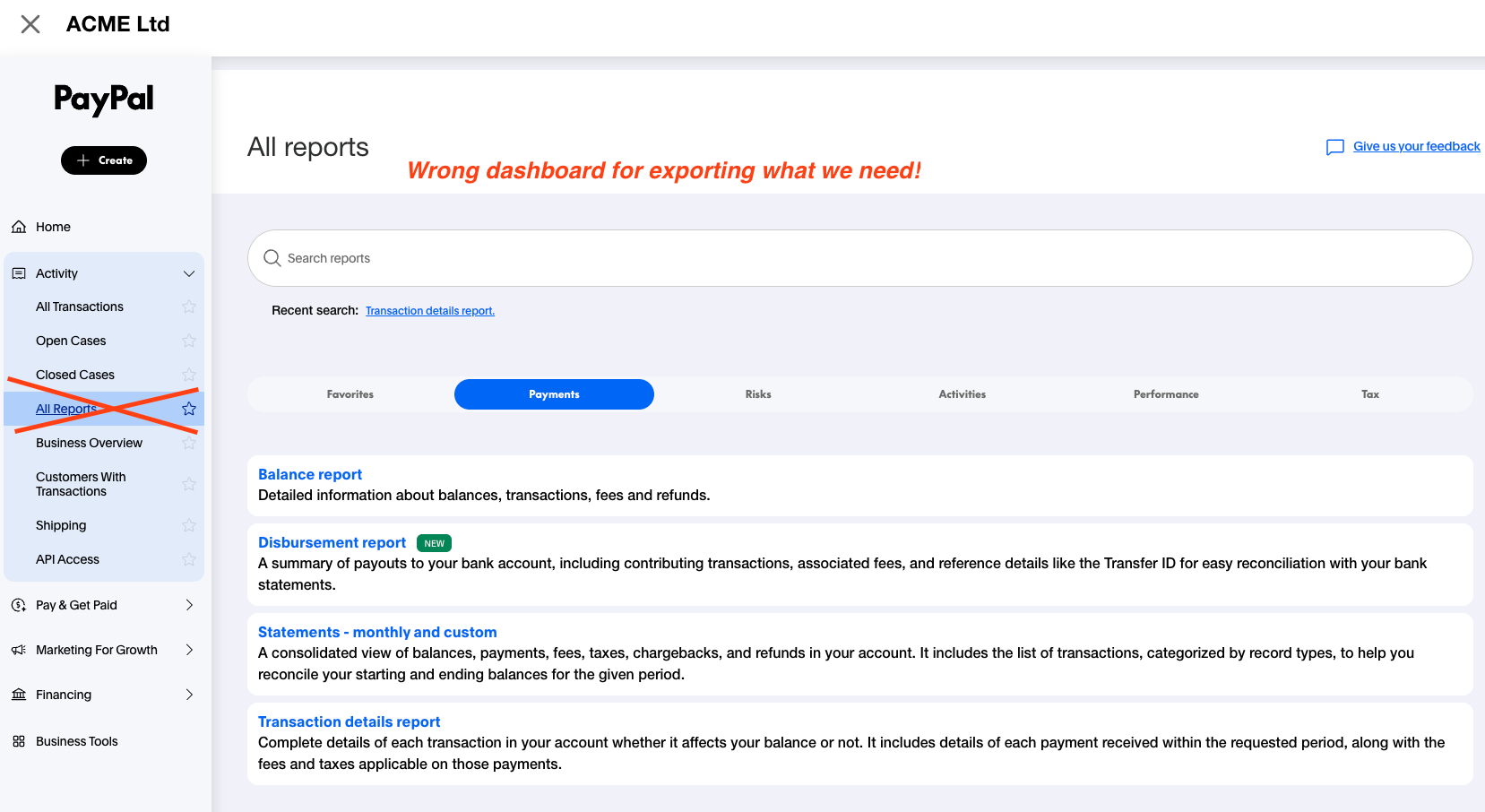
Do NOT use: Activity > All Reports
The All Reports section under Activity contains different report types (Balance report, Disbursement report, Statements, Transaction details report). None of these produce the CSV format NjiaPay expects. Make sure you go to Activity > All Transactions and use the download button (⤓) as described in Step 2 above.
The page I see after logging in doesn't look like these screenshots
This is normal. PayPal regularly redesigns their dashboard and report export flow. The core steps (find transactions, create an activity report, download CSV) remain the same, but the menus and buttons may look different. Contact NjiaPay support at support@njiapay.com and we will walk you through the current dashboard and update this guide.
Required columns are missing or the upload fails
PayPal occasionally changes their CSV export format. If NjiaPay reports missing columns or a parsing error, contact NjiaPay support at support@njiapay.com with the CSV file attached and we will update our parser to handle the new format.