Adyen Export Guide
You need to upload the Settlement details report from Adyen. This is a company-level report that contains transaction details of all settled payments paid out to your merchant accounts. Adyen generates one report per settlement batch, typically weekly. See Adyen's official documentation for full details on this report.

Finding the Report
- In the left sidebar, click Reports (under the Finance section)
- Search for Settlement details
- Click View Reports to see generated reports
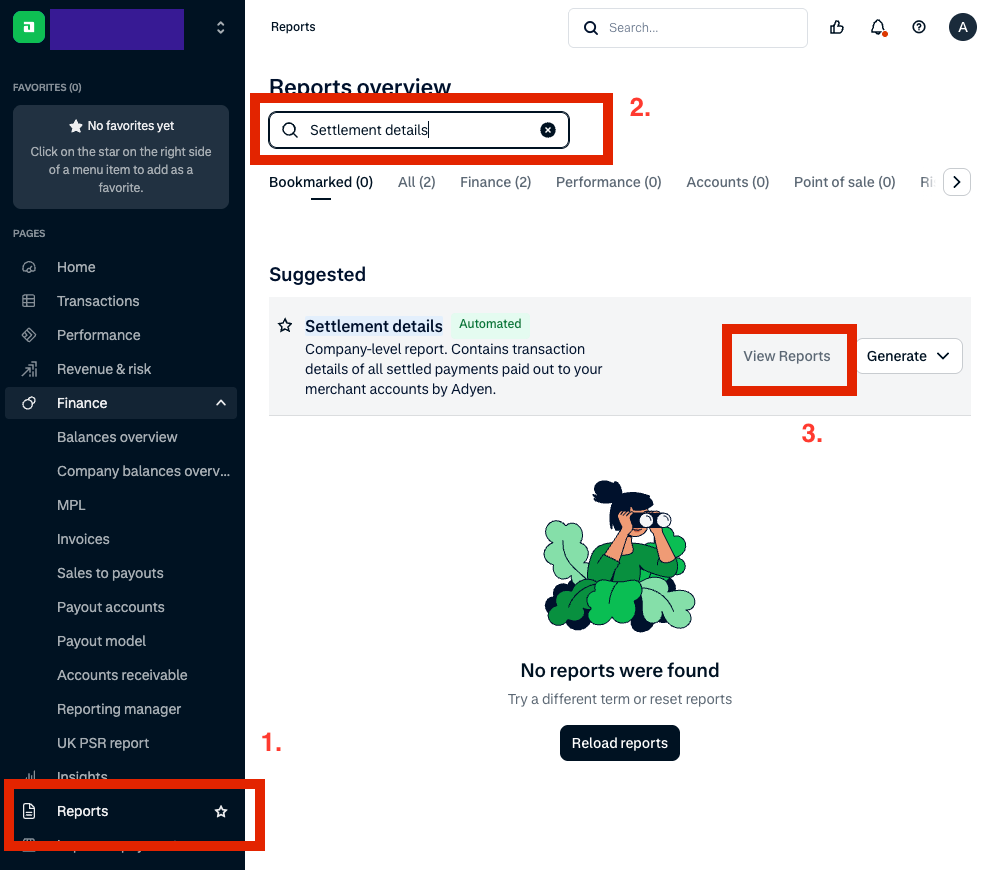
Each settlement batch produces one CSV file. Download the file for the batch you want to reconcile and upload it to NjiaPay.
Configuring Columns
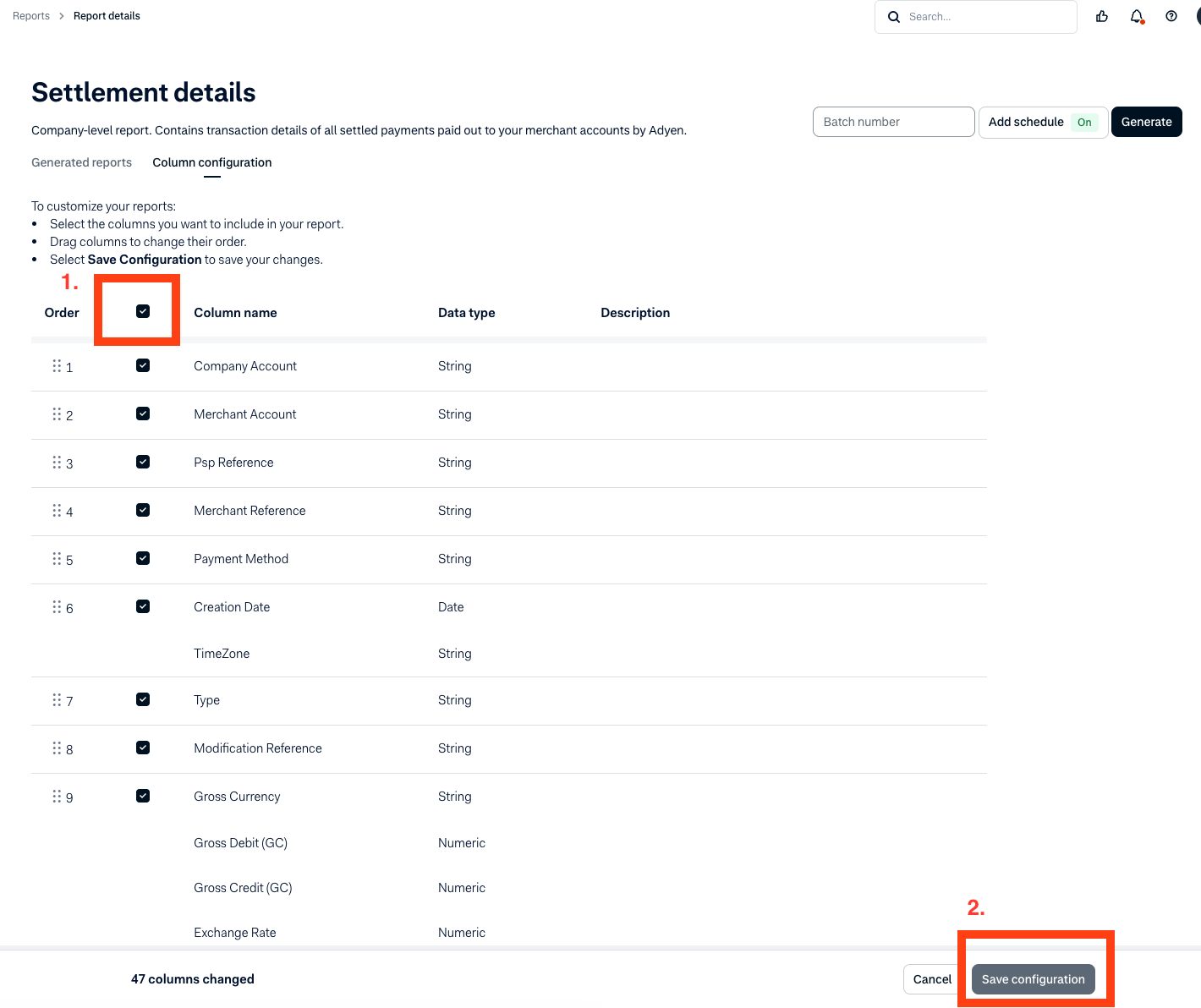
The CSV must contain the columns listed below, or the upload will fail. The NjiaPay merchant portal will tell you exactly which column is missing if it fails.
To configure which columns are included in your report, go to the Column configuration tab on the Settlement details report page. You need to select at least the columns listed in the Required Columns table. When in doubt, select all columns using the checkbox at the top of the list (except Card Number and Authorisation Code, which should be left unchecked for PII/PCI-DSS compliance), then click Save configuration.
Setting Up Automatic Reports
We recommend setting up automatic report generation so a new CSV is produced every time a settlement batch closes. On the Settlement details page, click Add schedule and configure:
- Automatic generation: On
- File type: .CSV (Comma-separated values)
- Schedule: At batch close
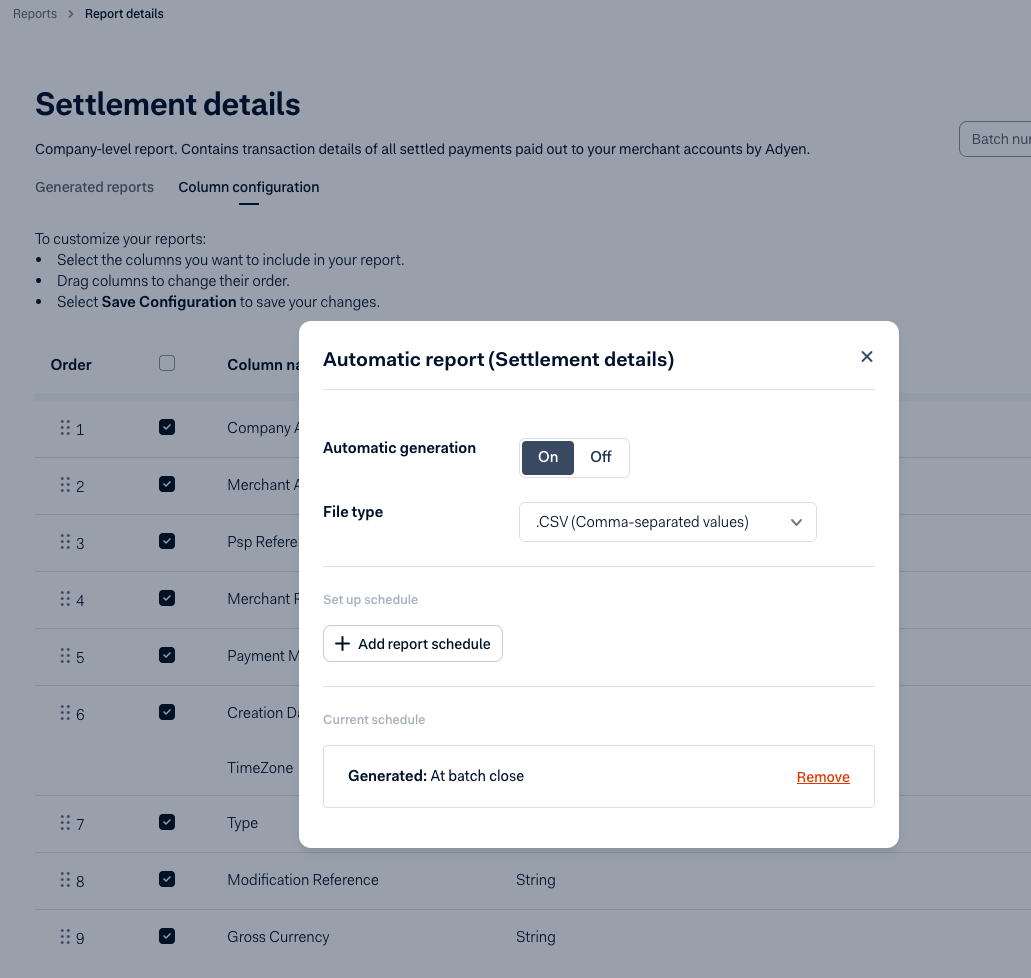
Once configured, Adyen will automatically generate a CSV after each batch closes. You then just need to download each batch's report from the Generated reports tab and upload it to NjiaPay.
Required Columns
Your Adyen CSV must contain all of the following columns. If any are missing, the upload will fail and the NjiaPay merchant portal will indicate which column is missing. Extra columns are allowed and will be ignored.
| Column Name | Type | Description | Example |
|---|---|---|---|
| Merchant Reference | Text | Your internal transaction reference | 019a3cb6-7b6f-7c0e~1837227 |
| Psp Reference | Text | Adyen's unique transaction reference | X332SX92SNCVQ7Z3 |
| Modification Reference | Text | Adyen's modification identifier (must be unique) | P47WM66MC4LKZBX3 |
| Creation Date | Date and time | When the transaction was created | 2025-02-04 05:01:00 |
| TimeZone | Text | Timezone of the Creation Date | CET |
| Type | Text | Transaction type | Settled, ChargebackReversed, Refunded |
| Batch Number | Whole number | Settlement batch identifier | 156 |
| Gross Currency | Text | Currency code for gross amounts | USD, EUR, GBP |
| Gross Credit (GC) | Number | Gross credit amount (in gross currency) | 40.00 |
| Gross Debit (GC) | Number | Gross debit amount (in gross currency) | 10.00 |
| Exchange Rate | Number | Exchange rate applied (up to 6 decimal places) | 0.573935 |
| Net Currency | Text | Currency code for net amounts | EUR |
| Net Credit (NC) | Number | Net credit amount (in net currency) | 17.26 |
| Net Debit (NC) | Number | Net debit amount (in net currency) | 0.84 |
| Commission (NC) | Number | Commission charged (in net currency) | 0.50 |
| Markup (NC) | Number | Markup charged (in net currency) | 0.10 |
| Scheme Fees (NC) | Number | Card scheme fees (in net currency) | 0.05 |
| Interchange (NC) | Number | Interchange fees (in net currency) | 0.20 |
Example Row
| Merchant Reference | Psp Reference | Modification Reference | Creation Date | TimeZone | Type | Batch Number | Gross Currency | Gross Credit (GC) | Gross Debit (GC) | Exchange Rate | Net Currency | Net Credit (NC) | Net Debit (NC) | Commission (NC) | Markup (NC) | Scheme Fees (NC) | Interchange (NC) |
|---|---|---|---|---|---|---|---|---|---|---|---|---|---|---|---|---|---|
| 019a3cb6-7b6f~1837227 | X332SX92SNCVQ7Z3 | P47WM66MC4LKZBX3 | 2025-02-04 05:01:00 | CET | Settled | 156 | AUD | 30.25 | 0.573935 | EUR | 17.26 | 0.10 |
Troubleshooting: Wrong Report Type
There are two other exports in Adyen that look similar but do not work for NjiaPay reconciliation. If your upload fails or produces incorrect results, make sure you are not using one of these.
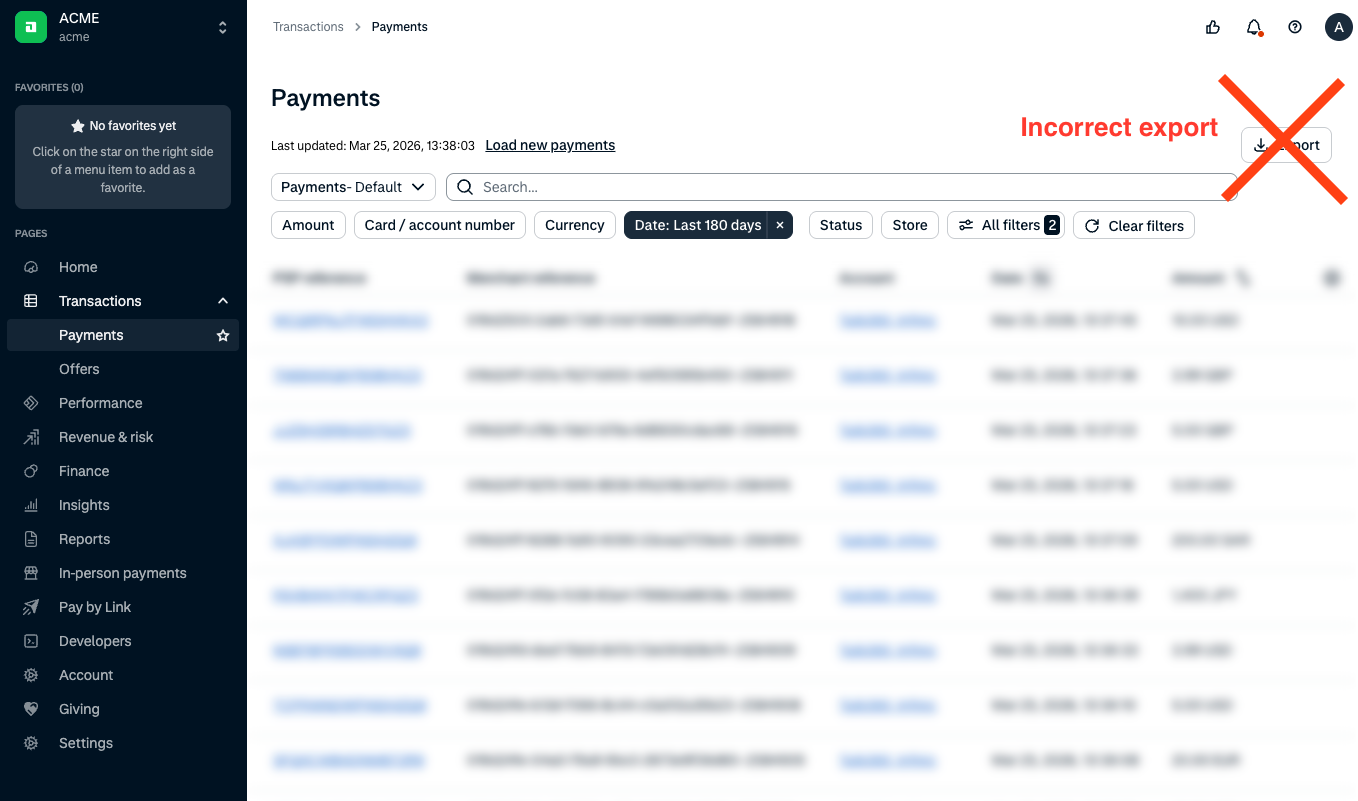
Do NOT use: Transactions > Payments > Export
The Export button on the Transactions > Payments page exports a list of payment transactions, but this does not contain the settlement and fee breakdown data that NjiaPay needs for reconciliation.
Do NOT use: Interactive Payment Accounting report
The Interactive Payment Accounting report (which is what the Transactions > Payments export modal may suggest) provides an overview of payment lifecycle status changes. This is also not the correct report for NjiaPay reconciliation.
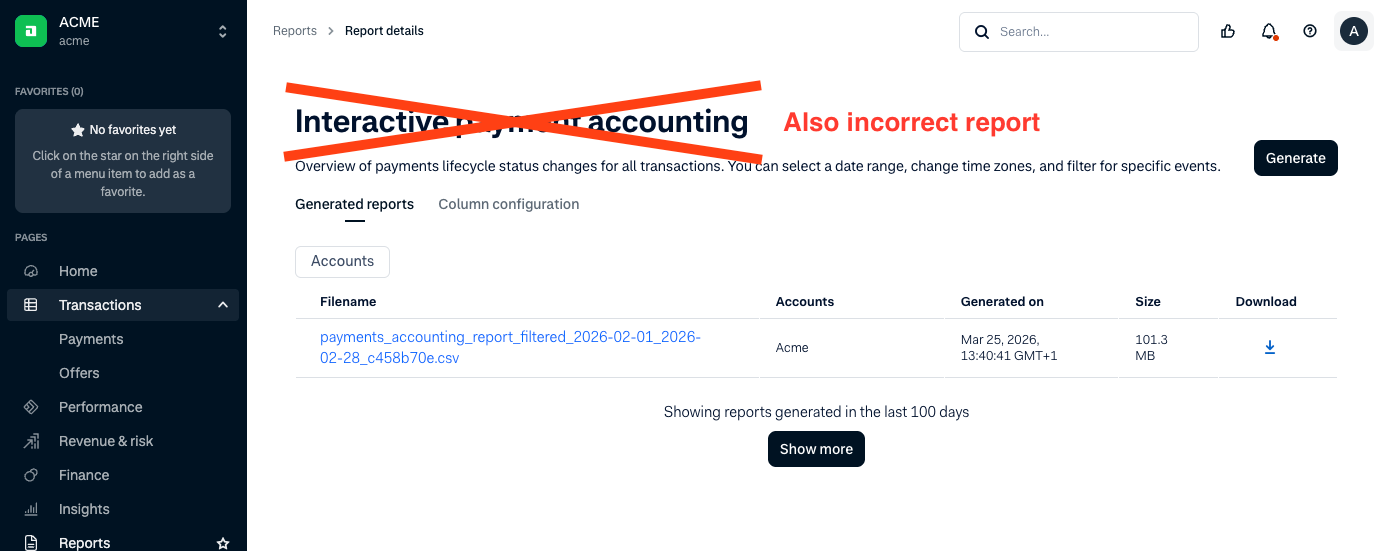
Use: Settlement details report (under Reports)
The only report NjiaPay accepts is the Settlement details report, found under Reports in the left sidebar (not under Transactions). See the Finding the Report section above.
Can't find the report, columns don't match, or upload fails with a parsing error?
If you run into any of these issues:
- You don't see the Settlement details report in your Adyen Customer Area
- The upload fails because of missing or misnamed columns, even after configuring them
- The upload fails because a value in the CSV could not be parsed
Contact NjiaPay support at support@njiapay.com and attach the CSV file that failed. We will help you resolve the issue.