Paystack Export Guide
You need to export transactions from the Paystack Dashboard. Make sure to include all transaction statuses (not just successful ones), as NjiaPay needs the full picture for reconciliation. See Paystack's support article on data exports for more details.

Step-by-step Export
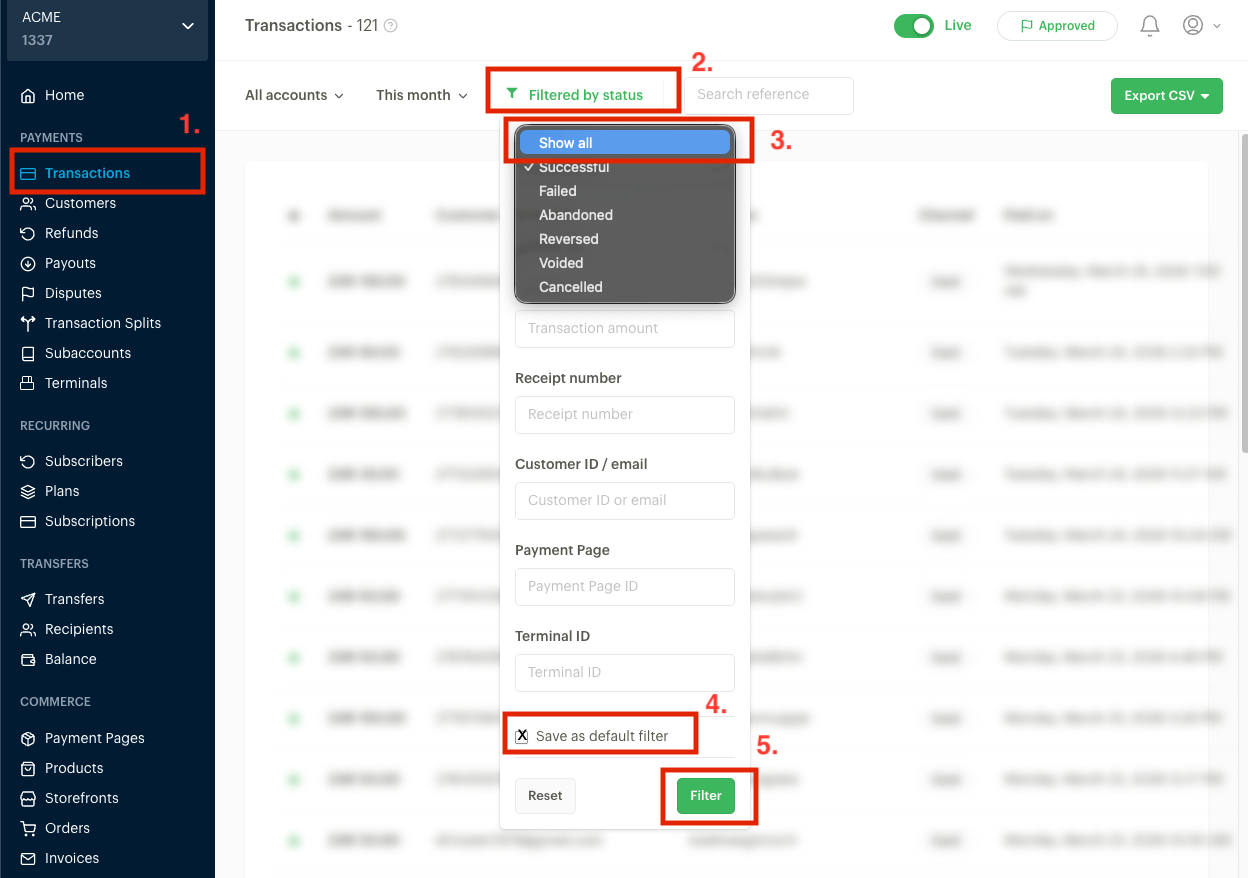
1. Select the right account and open Transactions
Make sure the correct account is selected in the top-left dropdown (e.g. "ACME") and that the toggle in the top right shows Live (not Test). Then click Transactions in the left sidebar under Payments.
2. Set the filter to show all statuses
Click Filtered by status in the toolbar. In the filter panel, open the Transaction Status dropdown and select Show all. This ensures the export includes successful, failed, abandoned, reversed, voided, and cancelled transactions.
3. Save as default filter
Check the Save as default filter checkbox at the bottom of the filter panel. This prevents accidentally exporting only successful transactions in the future.
4. Apply the filter
Click the Filter button to apply.
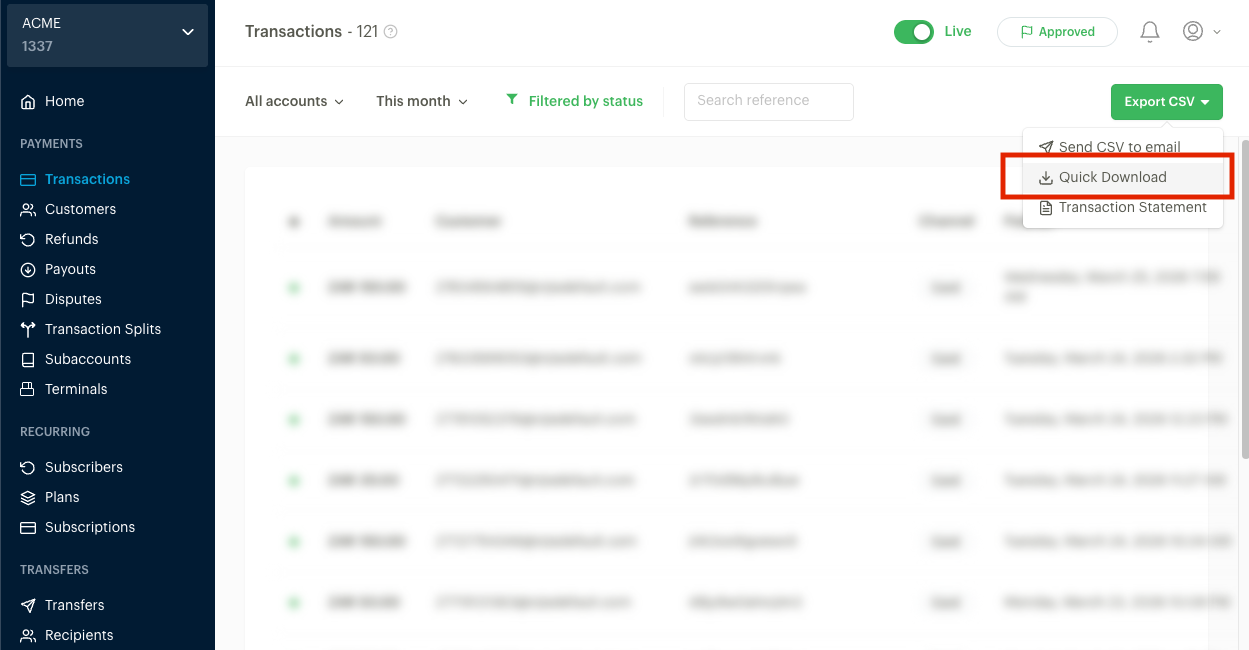
5. Export the CSV
Click the Export CSV button in the top right, then select Quick Download.
6. Upload to NjiaPay
Upload the downloaded CSV file via the PSP upload page.
Required Columns
Your Paystack CSV must contain all of the following columns. Extra columns are allowed and will be ignored.
| Column Name | Type | Description | Example |
|---|---|---|---|
| Reference | Text | Paystack's unique reference identifier | ju4ildktzyngkcg |
| Transaction Date | Text | When the transaction occurred (Paystack's own format) | Apr 8th, 2024 05:14:17 AM |
| Settlement Date | Text | When the settlement was processed (Paystack's own format) | Apr 9th, 2024 12:00:00 AM |
| Currency | Text | Currency code | ZAR, NGN |
| Amount Paid | Number | Amount paid by the customer | 50.00 |
| Total Fees | Number | Fees deducted by Paystack | 1.15 |
| Amount Due | Number | Net amount after fees | 48.85 |
| Gateway Response | Text | Gateway response status | Approved |
Apr 8th, 2024 05:14:17 AM. Do not modify the file before uploading. NjiaPay handles this format automatically.Example Rows
| Reference | Transaction Date | Settlement Date | Currency | Amount Paid | Total Fees | Amount Due | Gateway Response |
|---|---|---|---|---|---|---|---|
| ju4ildktzyngkcg | Apr 8th, 2024 05:14:17 AM | Apr 9th, 2024 12:00:00 AM | ZAR | 50.00 | 1.15 | 48.85 | Approved |
| o1j5iwc8byaaanq | Apr 8th, 2024 08:00:56 AM | Apr 9th, 2024 12:00:00 AM | ZAR | 100.00 | 2.30 | 97.70 | Approved |
Troubleshooting
Export button is greyed out or missing
You may need admin rights on the Paystack account to export transactions. Ask your account administrator to either grant you the necessary permissions or perform the export on your behalf.
Required columns are missing or the upload fails
PSPs occasionally change their CSV export format without notice. If you upload a Paystack CSV and NjiaPay reports missing columns or a parsing error, it likely means Paystack has changed column names or data formats since this guide was written. Contact NjiaPay support at support@njiapay.com with the CSV file attached and we will update our parser to handle the new format.